Last Updated on June 10, 2026 by CU Staff
You click the Proton VPN icon, wait, and nothing happens. No window, no error, just a taskbar that pretends you never clicked at all. Or maybe the app flashes open for a second and dies. If that sounds familiar, the good news is that this is almost always fixable at home, and you rarely need to reinstall anything. Most of the time it comes down to a stuck background process, a software conflict, or a permission the app never got. Below is the exact order I work through when Proton VPN won’t open, starting with the fixes that solve it for most people.
Quick Answer: Why Proton VPN Won’t Open
Proton VPN usually won’t open because a leftover background process is blocking a fresh launch, or because another program (an antivirus, firewall, or overlay tool) is interfering with it. Fully closing the app from Task Manager and relaunching it as administrator fixes the majority of cases. After that, check for conflicts and update the app.
What’s Actually Happening When the App Won’t Launch
It helps to know what “won’t open” really means, because the cause is different depending on what you see.
There are three common versions of this problem. The first is total silence: you double-click and nothing appears at all. The second is a crash on startup, where the window flashes and vanishes. The third is a frozen launch, where the app opens but hangs on the loading screen or sits there unresponsive. Each one points to a slightly different culprit, but the early fixes overlap, so you don’t need to diagnose it perfectly before you start.
In my experience, the silent-no-window case is almost always a process that’s already running in the background. Windows thinks the app is open, so clicking the icon does nothing. The crash-on-startup case usually points to a software conflict or a corrupted setting. The frozen-launch case tends to be a network or driver issue. Keep that loose map in mind as you go.
Fix 1: Fully Close Proton VPN Before You Reopen It
This is the single most effective fix, and it’s the one people skip.
When you close the Proton VPN window, the app often keeps running in the system tray or as a hidden background process. So when you click the icon again, Windows sees it’s “already open” and ignores you. You have to kill the process completely.
On Windows, press Ctrl + Shift + Esc to open Task Manager. Look under the Processes tab for anything named “Proton VPN” or “ProtonVPNService.” Right-click each one and choose End task. Then try launching the app again from the Start menu.
On Mac, open Activity Monitor, search for Proton, select any Proton VPN entries, and force quit them. Then relaunch.
If the app opens after this, you’re done. If not, keep going.
Fix 2: Launch as Administrator (Windows)
Proton VPN needs certain system-level permissions to create its network tunnel. If it never got those permissions, it can fail to open or quietly crash.
Right-click the Proton VPN shortcut and choose Run as administrator. If it opens this way, you can make the change permanent: right-click the shortcut, go to Properties, then Compatibility, and tick Run this program as an administrator. Click Apply.
This one is easy to overlook because the app installs fine without admin rights. It just can’t always run properly without them.
Fix 3: Restart Your Device
I know. But a restart clears stuck processes, releases locked network adapters, and resets the virtual network driver that Proton VPN relies on. If killing the process in Task Manager didn’t work, a full restart often does the same job more thoroughly.
Save your work, restart, and try Proton VPN before opening anything else. A clean boot gives the app the best chance to claim the resources it needs.
Fix 4: Check for Conflicting Software
This is the cause most people never suspect, and it’s a big one.
Certain programs interfere with Proton VPN at a level deep enough to stop it opening. Proton itself has confirmed two specific conflicts worth knowing about.
If you have RivaTuner Statistics Server installed (it ships with MSI Afterburner and several overclocking tools), Proton VPN will not open while RivaTuner is running on a Windows device. Closing RivaTuner, or adding Proton VPN to its exclusion list, resolves it. This trips up a lot of gamers who run Afterburner without realizing RivaTuner is bundled in.
Avast is the other known troublemaker. Avast software on a Windows PC can cause conflicts with Proton VPN, and Proton has a dedicated support article on working around it. The same logic applies to other heavy antivirus suites: they sometimes flag a VPN’s network behavior as suspicious and block it before it can launch.
To test for a conflict, temporarily close your antivirus and any overlay or system-monitoring tools, then try opening Proton VPN. If it works, you’ve found your answer. Add Proton VPN as an exception in that program rather than leaving your protection off.
Fix 5: Reset Proton VPN to Default Settings
A corrupted config file can stop the app cold. Resetting wipes your local settings without touching your account, and it clears whatever broke.
On Mac, this one is built in. Open the Proton VPN app, go to the menu bar, choose Help, then Clear Application Data, and click Delete on the warning screen to reset the app to its default settings. The catch, of course, is that you need the app to open first. If it won’t open at all, skip to the reinstall step.
On Windows, if you can get the app open even briefly, look in Settings for a Reset to Default option. If you can’t open it at all, the cleanest reset is a clean reinstall, covered below.
Fix 6: Check Your System Clock
This sounds unrelated, but it isn’t. Proton VPN uses encrypted certificates to verify connections, and certificate checks depend on your device having the correct date and time. If your clock is wrong, the app can fail validation and refuse to launch or connect.
On Windows, right-click the clock in the taskbar, choose Adjust date and time, and turn on Set time automatically. On Mac, go to System Settings, then General, then Date & Time, and enable automatic time. A wrong clock is a five-second fix that people waste an hour ignoring.
Fix 7: Update or Reinstall the App
An outdated version can break after a Windows or macOS update, and a corrupted install can refuse to open no matter what you try.
First, check whether you’re on the latest version. If the app won’t open to check, download the current installer straight from the official site, and install over your existing copy.
If that still fails, do a clean reinstall:
- Uninstall Proton VPN through Windows Settings or by dragging it to the Trash on Mac.
- Restart your device.
- Download a fresh installer from the official Proton VPN site.
- Install it, then launch as administrator the first time.
A clean reinstall clears corrupted files, broken drivers, and bad config in one move. It’s the closest thing to a guaranteed fix when nothing else works.
Fix 8: Look at Your Network and the Proton Status Page
Sometimes the app isn’t the problem. If Proton VPN opens but hangs on the loading screen, the issue may be your connection or Proton’s servers.
Confirm your internet works without the VPN by loading any website normally. If your connection is fine, the trouble may be on Proton’s end. Check the official Proton VPN status page to see whether servers are down for maintenance. If a specific server is having issues, switching to a different one usually clears a stuck connection.
If you’re on a restrictive network (some workplaces, schools, and certain countries block VPN traffic outright), the app may open but never connect. In that case the fix is a different network or Proton’s alternative routing feature, not anything wrong with your install. If you ever need to reach a service that’s being blocked on your network, our guide on getting around blocked or restricted websites walks through a few approaches.
Common Mistakes to Avoid

A few habits make this problem worse or harder to solve:
- Repeatedly clicking the icon when nothing happens. You’re just stacking up background processes. Kill them in Task Manager instead.
- Leaving your antivirus off after testing for a conflict. Add Proton VPN as an exception and turn your protection back on.
- Downloading the installer from a random third-party site. Always get it from the official Proton VPN site to avoid tampered or outdated files.
- Reinstalling before trying the simple fixes. Most launch failures clear up with a process kill, an admin launch, or a restart.
- Ignoring your system clock. A wrong date quietly breaks certificate checks and gets blamed on everything else.
Pro Tips for Keeping Proton VPN Stable
A little maintenance keeps the app from breaking again:
- Set Proton VPN to launch as administrator by default so it always gets the permissions it needs.
- Keep the app updated. Most launch failures after an OS update come from running an old version.
- If you game with MSI Afterburner, remember RivaTuner is bundled in, and add Proton VPN to its exclusions before they clash.
- Bookmark the official Proton status page so you can rule out a server outage in seconds instead of troubleshooting your own machine.
- Restart your device every few days if you keep it on constantly. It clears the stuck network states that cause silent launch failures.
Key Takeaways
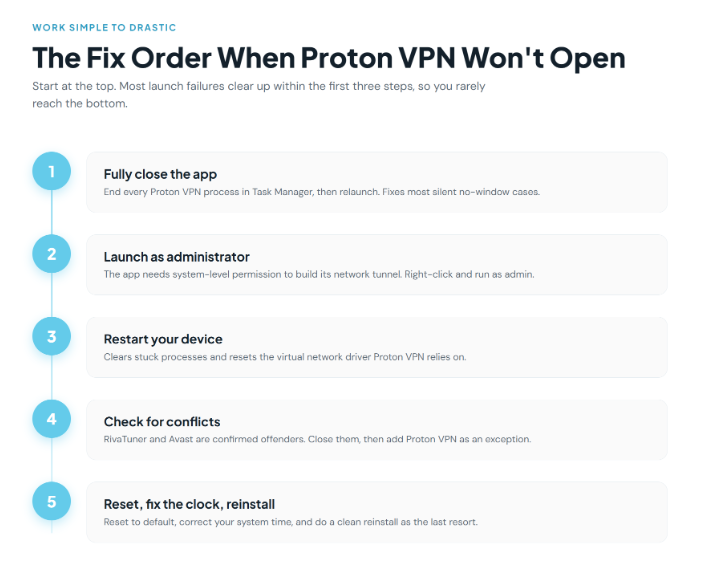
When Proton VPN won’t open, work from simple to drastic. Kill the background process in Task Manager, launch as administrator, and restart your device. If it still won’t open, check for software conflicts (RivaTuner and Avast are the known offenders), reset the app, confirm your system clock, and reinstall as a last resort. The one thing to remember: a silent no-window launch is almost always a stuck process, and ending it in Task Manager fixes it more often than anything else.
Frequently Asked Questions
Why won’t Proton VPN open on Windows 10 or 11?
The most common reason is a leftover Proton VPN process running in the background, which makes Windows ignore new clicks on the icon. End the task in Task Manager, then relaunch as administrator. Software conflicts with RivaTuner or Avast are the next most likely cause.
Why does Proton VPN crash on startup?
A crash on startup usually points to a corrupted setting or a conflict with another program. Try ending the process, launching as administrator, and temporarily closing your antivirus to test. If it still crashes, reset the app or do a clean reinstall.
Does Proton VPN need administrator rights to open?
It can. Proton VPN creates a system-level network tunnel and sometimes needs admin permissions to do so. If the app won’t open normally, right-click the shortcut and choose Run as administrator. If that works, set it to always run as admin in the shortcut’s compatibility settings.
Can my antivirus stop Proton VPN from opening?
Yes. Some antivirus programs, Avast in particular, flag a VPN’s network behavior and block the app before it launches. Test by temporarily disabling your antivirus, then add Proton VPN as an exception and turn your protection back on.
Why does Proton VPN open but freeze on the loading screen?
A frozen loading screen is usually a network or server issue rather than a broken app. Confirm your internet works without the VPN, check the official Proton status page for outages, and try switching to a different server.
Will reinstalling Proton VPN delete my account?
No. Uninstalling and reinstalling the app only removes the local software and its settings. Your Proton account and subscription live on Proton’s servers, so you simply sign back in after reinstalling.
