Last Updated on June 10, 2026 by CU Staff
If your Dell laptop has slowed to a crawl, picked up malware, or you are about to sell it, a reset is usually the fix that clears everything up. The good news is you do not need to be a technician to do it. Dell laptops run Windows, and Windows has a built-in reset tool that handles most of the work for you. This guide walks through every method that matters: the simple in-Windows reset, the recovery menu for when the laptop will not boot, and Dell’s own SupportAssist OS Recovery tool. By the end you will know exactly which one fits your situation.
I have reset more Dell machines than I can count, from old Inspiron units to newer XPS laptops, and the process is more forgiving than most people expect. Let me walk you through it.
Quick Answer: How to Reset a Dell Laptop
To reset a Dell laptop, go to Settings > System > Recovery on Windows 11 (or Settings > Update & Security > Recovery on Windows 10), click Reset PC, then choose Keep my files or Remove everything. Pick Cloud download or Local reinstall, confirm, and let it run.
That is the short version. Most people are covered by it. The rest of this guide explains the choices you will face along the way and what to do if the normal route does not work.
What “Resetting” a Dell Laptop Actually Means
People use the word “reset” to mean a few different things, so it helps to get the terms straight before you start.
A factory reset reinstalls Windows and wipes the laptop back to the state it left the Dell factory in. A soft reset is really just a restart. And restoring factory settings through Dell’s recovery tool puts back the original Dell software and drivers that shipped with the machine. This guide focuses on the factory reset, since that is what fixes the big problems: sluggish performance, corrupted system files, stubborn malware, and prepping a laptop for a new owner.
The important thing to understand is that a reset rebuilds your operating system. Depending on the option you pick, it can keep your personal files or erase them completely. It always removes the apps and settings you added after buying the laptop. So before you touch anything, decide what you want to keep.
Before You Reset: Back Up Your Files
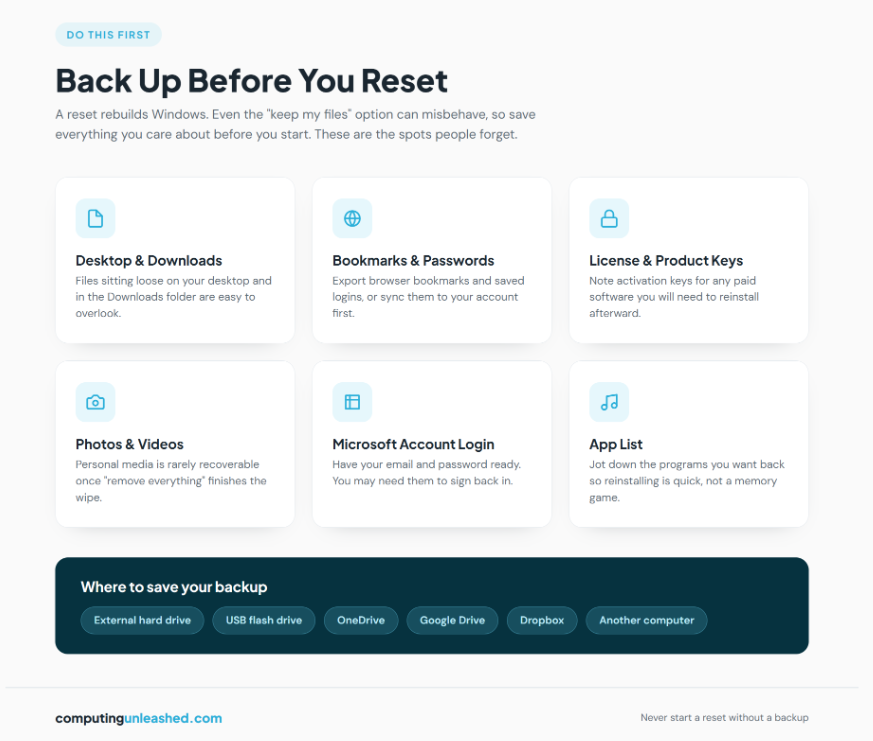
This is the step people skip, then regret. Even the “keep my files” option can fail or behave unexpectedly, and the “remove everything” option deletes your data on purpose. Back up first, every time.
Copy anything you care about to one of these:
- An external hard drive or USB stick
- A cloud service like OneDrive, Google Drive, or Dropbox
- Another computer on your network
Pay attention to the spots people forget: browser bookmarks and saved passwords, files sitting on the desktop, anything in your Downloads folder, and product keys or license info for paid software. Also make sure you have your Microsoft account login handy, because you may need it to sign back in after the reset finishes.
If your laptop has been running hot or shutting down on its own, that points to a different problem than software, and a reset will not solve it. It is worth understanding how much power your laptop actually draws and how that ties into heat before you assume a wipe is the answer.
How to Reset a Dell Laptop on Windows 11
This is the method most Dell owners will use, since newer machines ship with Windows 11. Your laptop needs to boot normally for this to work.
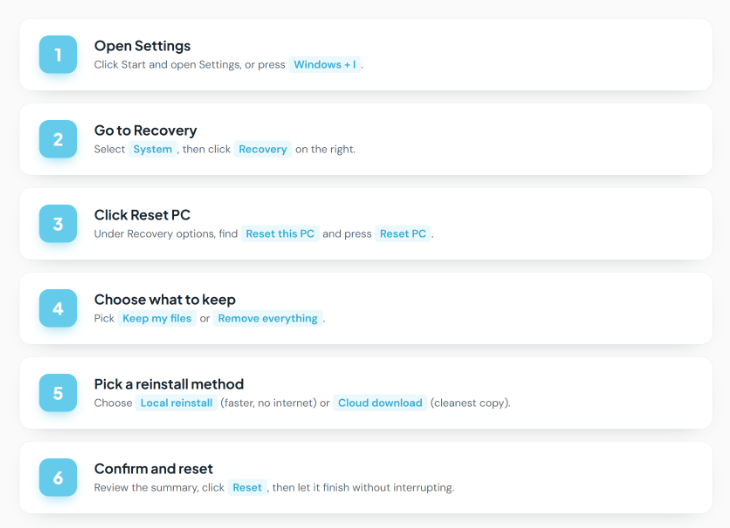
- Click the Start button and open Settings (or press Windows + I).
- Go to System, then click Recovery on the right.
- Under Recovery options, find Reset this PC and click Reset PC.
- Choose Keep my files or Remove everything.
- Choose Cloud download or Local reinstall (more on these below).
- Review the summary screen, then click Reset.
Now the laptop does the work. The screen may go black for stretches and the machine will restart itself a few times. During the resetting process, it is possible that your screen might go black for a long period of time, occasionally upwards of 15 minutes, and the device might attempt to restart itself. Do not force a restart while this is happening. Manually attempting to restart the device yourself during this process could cause the reset to fail. Keep it plugged into power and walk away. (Microsoft’s own Reset your PC guide covers the same steps if you want the official reference.)
Keep my files vs Remove everything
These two options are the heart of the whole process, so choose carefully.
Keep my files reinstalls Windows but leaves your personal documents, pictures, and similar files in place. It keeps your personal files in user folders like Documents, Pictures, and Desktop, but removes installed apps and most custom system settings. Use this when you want a fresh, fast Windows without losing your data. It is the right pick for fixing performance issues or clearing out a buggy install.
Remove everything wipes the laptop completely, including your files. This is what you want before selling, giving away, or recycling the machine. If you choose this, Windows offers a further choice: just remove the files, or fully clean the drive. Fully cleaning the drive prevents anyone else from recovering your data later, but it takes considerably longer because it rewrites blank data several times. For a laptop you are keeping, the quick option is fine. For one you are handing to a stranger, clean the drive.
Cloud download vs Local reinstall
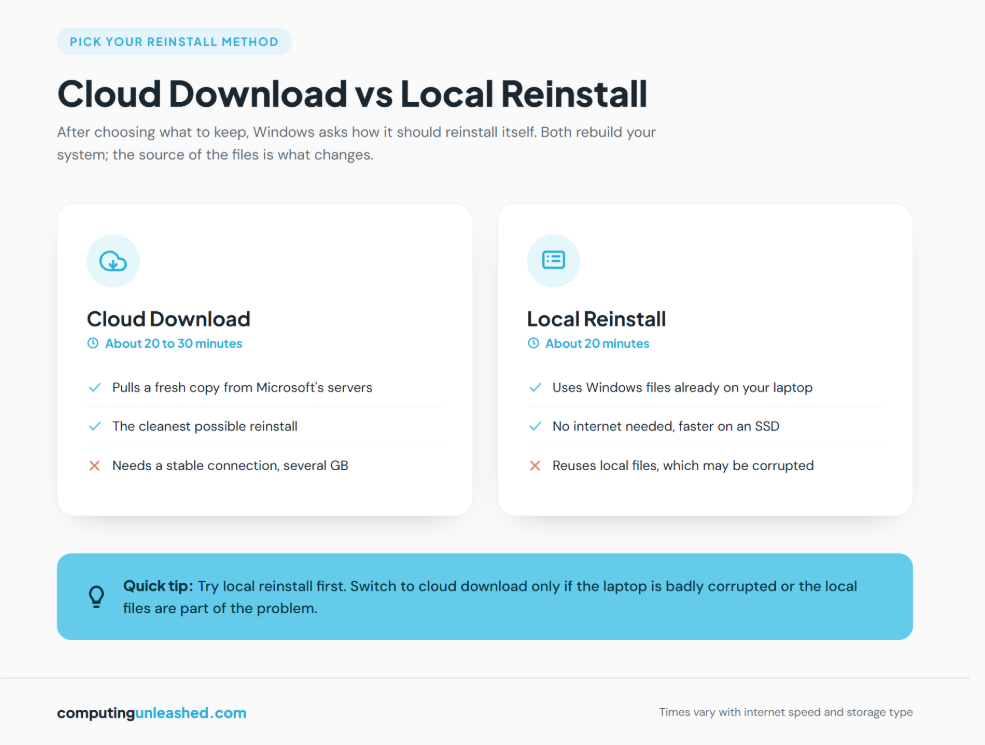
After picking what to keep, Windows asks how it should reinstall itself.
Local reinstall uses the Windows files already stored on your laptop. It needs no internet and is usually faster, especially on an SSD. A local reinstall typically takes about 20 minutes.
Cloud download pulls a fresh copy of Windows from Microsoft’s servers. A cloud download reset can take 20 to 30 minutes depending on internet speed, and it is recommended when Windows is unstable, system files are damaged, or you want the cleanest possible reinstall. The trade-off is a download of several gigabytes, so use a stable connection.
My rule of thumb: try local reinstall first. If the laptop is badly corrupted or the local files are part of the problem, switch to cloud download.
How to Reset a Dell Laptop on Windows 10
If your Dell still runs Windows 10, the steps are nearly identical, just in a slightly different menu.
- Open Settings (Windows + I).
- Click Update & Security.
- Select Recovery from the left sidebar.
- Under Reset this PC, click Get started.
- Choose Keep my files or Remove everything.
- Pick Cloud download or Local reinstall, confirm, and let it run.
The same warnings apply. Keep the laptop plugged in and do not interrupt it. A “Remove everything” reset on Windows 10 takes roughly 1.5 hours and performs a quick format, deletes personal files and user accounts, removes installed apps and drivers, and reverts settings to default.
How to Reset a Dell Laptop That Won’t Turn On or Boot
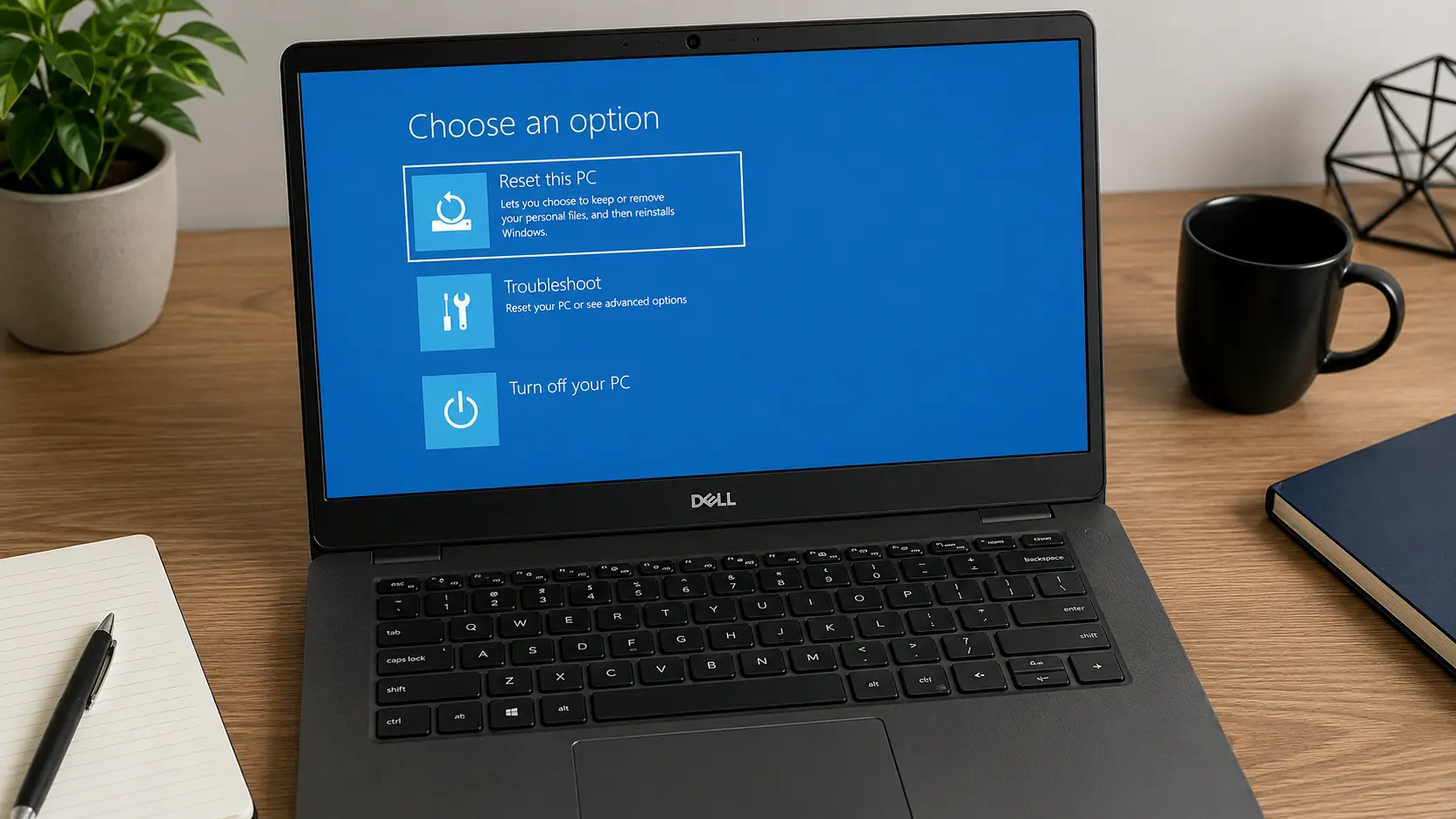
Sometimes the laptop is too broken to reach the desktop. Maybe Windows crashes on startup, or you are stuck in a boot loop. You can still reset from the Windows Recovery Environment.
The easiest way in is from the sign-in screen:
- On the login screen, hold the Shift key and click the Power button, then select Restart.
- The laptop reboots into recovery. Choose Troubleshoot.
- Select Reset this PC.
- Pick Keep my files or Remove everything, then Cloud download or Local reinstall.
- Follow the prompts.
If you cannot even reach the sign-in screen, Windows usually triggers recovery on its own after a few failed boots. You can also force it by turning the laptop off and on three times in a row, interrupting each boot before Windows loads. After the third try, it should drop into the recovery menu.
Using Dell SupportAssist OS Recovery
Dell builds its own recovery tool right into many of its laptops, and it is genuinely useful when Windows is too far gone to reset itself. It is called SupportAssist OS Recovery.
SupportAssist OS Recovery is factory-installed on supported Dell systems and provides a recovery environment with tools to diagnose and troubleshoot issues that occur before your computer boots to the operating system. When the laptop cannot boot even after repeated attempts, it starts automatically.
One catch worth knowing: it is not on every Dell. The local recovery image is available on consumer platforms such as Alienware, Inspiron, Vostro, and XPS products. Business-oriented models like the Precision line often rely on different recovery methods, so check Dell’s support page for your exact model if you do not see it.
To run a factory reset through it:
- Power on the laptop and tap F12 repeatedly as it starts to reach the boot menu, then select SupportAssist OS Recovery. (On many models it launches on its own after failed boots.)
- On the home page, find the RESET tile and start the reset.
- Select Reset to factory settings, then click Next.
- When prompted, choose whether to back up your files. If you do, select Yes, back up my files and follow the on-screen instructions.
- Confirm and let the tool reinstall the original Dell operating system and software.
A serious warning before you commit to this route. Make sure all your data and personal files are backed up to an external drive first, since many users have reported being unable to recover their data after using SupportAssist to reset to factory condition. Treat this as a wipe, not a tidy-up.
If SupportAssist is not installed or the recovery partition is damaged, Dell offers another path. If your computer does not support SupportAssist OS Recovery, Dell provides operating system recovery images online, and the Dell OS Recovery Tool lets you quickly download and create a bootable USB drive to reinstall the operating system. Dell’s SupportAssist OS Recovery support article{target=”_blank” rel=”noopener”} has the full official walkthrough and the list of supported models.
Comparing the Reset Methods
Not sure which method fits? Here is a quick side-by-side.
| Method | Best for | Keeps files? | Needs Windows to boot? |
|---|---|---|---|
| Settings reset (Win 11/10) | Most resets, slow PC, malware | Optional | Yes |
| Recovery Environment reset | Laptop won’t boot to desktop | Optional | No |
| SupportAssist OS Recovery | Windows badly broken or missing | Backup option only | No |
| Dell OS Recovery Tool (USB) | No recovery partition available | No | No |
For nine out of ten people, the Settings reset is all you need. The other methods exist for when things have gone wrong enough that Windows cannot help itself.
Common Mistakes to Avoid When Resetting a Dell Laptop
A few errors come up again and again. Steer clear of these.
- Not backing up first. This is the big one. Once “remove everything” runs, your files are gone. Back up before you start, no exceptions.
- Unplugging or restarting mid-reset. Interrupting the process can corrupt the install and leave you worse off than before. Let it finish.
- Running on battery. A reset can take an hour or more. If the battery dies partway through, you risk a failed install. Keep it on the charger. If your Dell drains charge oddly even when off, that is a separate issue worth looking into around why laptops lose charge when turned off.
- Forgetting your Microsoft account details. You may need them to sign back in after the reset. Have your email and password ready.
- Expecting a reset to fix hardware. If the screen flickers, the laptop overheats, or it shuts down randomly, software is probably not the cause. A reset will not repair a failing component.
Pro Tips for a Smooth Dell Reset
A few habits make the whole thing easier and the result cleaner.
- Choose cloud download if you suspect bloatware or corruption. It pulls a clean copy of Windows rather than reusing whatever is already on the drive.
- Use “fully clean the drive” only when selling. It takes much longer, and you do not need it for a laptop you are keeping.
- Update Windows right after the reset. A fresh install is often a few updates behind. Run Windows Update before you reinstall your apps.
- Reinstall Dell drivers. After a clean Windows reinstall, grab the latest drivers from Dell’s support site for your model to keep everything working smoothly.
- Keep your software list handy. Jot down the programs you will want back so reinstalling is quick instead of a memory game.
Key Takeaways
Resetting a Dell laptop is one of the most reliable fixes in computing, and Windows makes it approachable for anyone. Back up your files first, head to the Recovery settings, and choose whether to keep your data or wipe it clean. If the laptop will not boot, the Windows Recovery Environment and Dell’s SupportAssist OS Recovery have you covered. The single rule that matters most: never start a reset without a backup. Get that right and the rest is just waiting for the progress bar.
Frequently Asked Questions
Does resetting a Dell laptop delete everything?
It depends on the option you choose. “Keep my files” reinstalls Windows but leaves your personal documents and photos in place, while removing installed apps and settings. “Remove everything” wipes the entire laptop, including your files. Always back up first regardless of which one you pick.
How long does it take to reset a Dell laptop?
A local reinstall usually takes about 20 minutes, and a cloud download runs 20 to 30 minutes depending on your internet speed. A full “remove everything” reset, especially with the drive-cleaning option, can take an hour or more. Keep the laptop plugged into power the whole time.
Will a factory reset speed up my Dell laptop?
Often, yes. Resetting clears out accumulated junk files, broken software, and malware that can slow a system down over time. If the slowdown is caused by hardware, like a failing drive or limited RAM, a reset will not help much. In that case you may want to look at whether adding more RAM would speed up your computer instead.
How do I reset my Dell laptop if I forgot my password?
Restart the laptop and enter the Windows Recovery Environment by holding Shift while clicking Restart from the login screen, or by interrupting the boot three times in a row. From there, go to Troubleshoot, then Reset this PC, and choose Remove everything. This wipes the laptop and lets you set it up fresh without the old password.
What is Dell SupportAssist OS Recovery used for?
It is Dell’s built-in recovery environment, factory-installed on many of its laptops. It can diagnose hardware problems, repair startup issues, back up your files, and reset the laptop to its original factory state. It is especially useful when Windows is too damaged to reset itself, and it often launches automatically after several failed boot attempts.
Do I need an internet connection to reset my Dell laptop?
Not always. The local reinstall option uses Windows files already stored on your laptop and needs no internet. The cloud download option does require a stable connection because it downloads a fresh copy of Windows from Microsoft. If your connection is slow or unreliable, choose local reinstall.