Last Updated on May 20, 2026 by CU Staff
You sit down to work, open the lid, and the entire display is bathed in green. Or maybe it happens mid-video, mid-game, or right after waking the laptop from sleep. Either way, it’s the kind of problem that makes you assume the worst.
A laptop green screen is usually caused by a corrupted or outdated graphics driver, a loose display cable, hardware acceleration glitches in browsers or video players, or overheating. Start by restarting the laptop, then update your GPU drivers, disable hardware acceleration, and test with an external monitor to figure out whether the issue is software-based or a physical hardware problem.
Most green screen issues are fixable at home without paying for repairs. The trick is working through the causes in the right order, so you don’t waste time replacing a screen when the real culprit was a bad driver. This guide walks through every common fix, from the 30-second restart to the deeper hardware checks.
What causes a green screen on a laptop?
A laptop screen turns green when the signal carrying color information from the GPU to the display gets corrupted, drops a color channel, or fails to render properly. Screens use three primary colors (red, green, blue) to build every image. When the red and blue channels fail or get blocked, you’re left with green dominating the picture.
The cause sits in one of two places: software or hardware.
Software causes include outdated graphics drivers, conflicts after a Windows update, broken codecs that mishandle video color data, malware corrupting display files, and hardware acceleration bugs in apps like Chrome or VLC. These are the easier fixes because no parts need replacing.
Hardware causes are the heavier ones. A loose ribbon cable between the screen and motherboard, a damaged LCD panel, a failing graphics chip, or a motherboard issue can all produce green tints, full green screens, or flickering. Hardware problems also show up after physical damage, water exposure, or heat buildup that has worn down components over time. If you want a basic refresher on how all the pieces inside your laptop talk to each other, this overview of how computers work explains it in plain language.
Common symptoms of laptop green screen problems
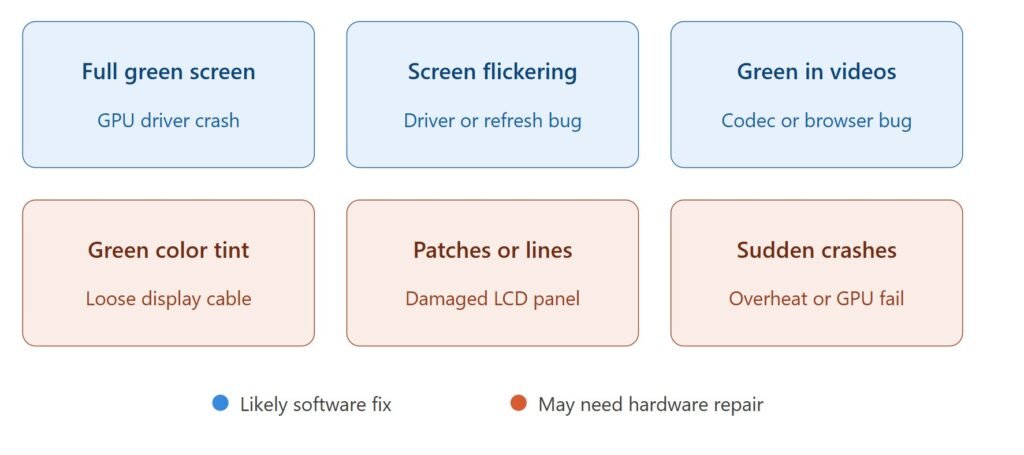
Not every green screen looks the same, and the specific symptom tells you a lot about where the fault sits.
- Full green display. The whole screen turns solid green, sometimes with text or shapes faintly visible. This is often called the “green screen of death” and usually points to a driver crash or a serious GPU issue.
- Green tint across everything. Whites look mint, skin tones look sickly, and the entire image has a green wash. This is typically a display cable problem or color profile glitch.
- Green patches or vertical lines. Bands or blocks of green appear in parts of the screen. Almost always a hardware problem with the screen panel or its connection.
- Green flickering. The screen flashes green briefly and recovers, often during video playback or scrolling. Usually a driver, hardware acceleration, or refresh rate mismatch.
- Green only in videos. YouTube goes green but everything else looks fine. This is a codec or browser acceleration issue, not a hardware fault.
- Crashes and restarts. Green screen followed by a hard reboot points to driver corruption or overheating, sometimes both.
Pin down which one you’re seeing before you start fixing. It saves you from trying the wrong solutions.
Quick fixes you should try first
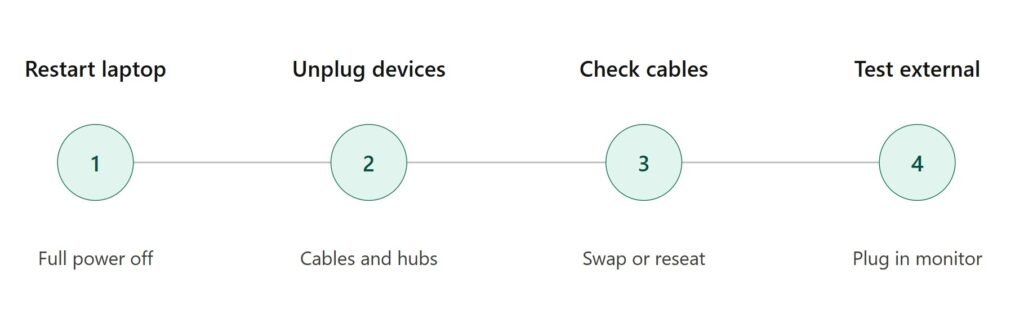
Before opening any settings menu, run through these basic steps. They take five minutes and fix the problem more often than you’d expect.
Restart the laptop
Sounds obvious, but a clean reboot clears whatever temporary state caused the green display. Power off completely, wait ten seconds, then power back on. Don’t just close the lid or use sleep mode. Full shutdown forces drivers and graphics processes to reload from scratch.
Disconnect external devices
Unplug any HDMI cables, USB hubs, external monitors, docking stations, and USB-C displays. External peripherals occasionally confuse the graphics output and force the laptop to render in a strange color mode. With everything disconnected, restart again and check.
Check display cables
If you’re using an external monitor, swap the HDMI or DisplayPort cable for a different one. Cheap or damaged cables drop signal pins, and the missing pins often kill the red or blue channel, leaving green behind. Try a different port on the laptop too if you have one.
Test with an external monitor
This is the single most useful test. Plug the laptop into an external monitor or TV. If the external display shows normal colors but the laptop screen is still green, the laptop’s screen or its internal cable is the problem. If the external display also shows green, the GPU or driver is at fault. This one test narrows the entire diagnosis.
Update or reinstall graphics drivers
Outdated, corrupted, or conflicting graphics drivers are the most common cause of green screen problems on Windows laptops. Drivers are the translator between Windows and your GPU, and when that translator gets confused, weird color output is one of the first things to break.
For NVIDIA GPUs: Download GeForce Experience or grab the latest driver directly from nvidia.com. Use the “Custom Install” option and tick “Perform a clean installation.” This wipes old driver files instead of layering new ones on top of broken ones.
For AMD Radeon GPUs: Get the AMD Software: Adrenalin Edition from amd.com. Run the factory reset option during install so it removes lingering old files.
For Intel integrated graphics: Most laptops with no dedicated GPU use Intel UHD or Iris graphics. Head to intel.com/support and use the Intel Driver & Support Assistant to find the right driver for your chip.
If the driver update alone doesn’t fix things, do a full reinstall:
- Boot into Safe Mode (hold Shift while clicking Restart, then go through Troubleshoot → Advanced Options → Startup Settings).
- Use Display Driver Uninstaller (DDU), a free tool that scrubs every trace of old driver files.
- Restart normally and install the latest driver fresh.
This three-step process clears out conflicts that simple updates miss. Driver corruption is especially common after a major Windows update overwrites the manufacturer’s driver with a generic Microsoft one.
Disable hardware acceleration
Hardware acceleration lets apps offload work from the CPU to the GPU. It’s good for speed, but it occasionally produces green screens when the GPU isn’t decoding properly, especially during video playback.
In Chrome, go to Settings → System and turn off “Use hardware acceleration when available.” Restart the browser and test. Same setting exists in Firefox (Settings → Performance, untick “Use recommended performance settings” and then untick “Use hardware acceleration”), Edge, and apps like Discord, Spotify, and VLC.
If green screens keep coming back in Chrome specifically, sometimes a full settings reset helps. Here’s a walkthrough on resetting Chrome to its default state without losing your bookmarks or passwords.
A quick note: don’t leave hardware acceleration off forever. It does improve video quality and speed when it works. Re-enable it once you’ve sorted the underlying driver issue.
Check for overheating problems
Heat is one of the most overlooked causes of display problems. When a GPU runs too hot, it throttles itself and can produce visual artifacts, including green flashes, lines, or full screen takeovers. Long-term heat exposure also damages solder joints under the GPU chip, which is a common failure mode in older laptops.
Signs of an overheating laptop:
- Fans running loudly all the time
- The keyboard or chassis feels hot to the touch
- Performance drops dramatically after a few minutes
- Random shutdowns
- Visual glitches that worsen during gaming or video editing
To check temperatures, install a free tool like HWMonitor or Core Temp. CPU and GPU temps above 90°C under load are too high. Anything hitting 100°C means the system is throttling hard.
Fix overheating by cleaning out dust, replacing thermal paste if you’re comfortable opening the laptop, and using a cooling pad during heavy tasks. Detailed steps for that are covered in this guide on keeping laptops cool while gaming. The same principles apply to any heavy workload, not just gaming. Heat affects every laptop the same way regardless of what’s making it hot.
Also worth checking: power draw. Laptops pushed beyond their thermal limits can pull more current than expected. If you’re curious about typical laptop power consumption, that piece breaks down how much wattage different machines actually need under load.
Run malware and virus scans
Malware doesn’t usually cause green screens directly, but certain types of infections corrupt system files, drivers, or video codecs in ways that produce display problems. Rootkits and aggressive adware are the worst offenders here.
Run a full scan with Windows Defender (Settings → Privacy & Security → Windows Security → Virus & threat protection → Scan options → Full scan). Then run a second opinion scan with Malwarebytes Free, which catches things Defender misses.
If you’re new to thinking about this stuff, this primer on what a computer virus actually is and how it spreads is worth a read. Knowing what you’re dealing with makes the cleanup less stressful. Most modern malware won’t trigger a green screen, but if your laptop is also slow, full of pop-ups, or running fans constantly, infection is a real possibility worth ruling out.
Inspect laptop display hardware
If software fixes haven’t worked and the green only appears on the laptop’s built-in screen (not the external monitor), the hardware itself is the issue. Here’s what to check, in order of likelihood.
Loose display cable. Inside the laptop, a thin ribbon cable (LVDS or eDP) runs from the motherboard through the hinge to the screen. Repeated opening and closing of the lid wears this cable out. A loose or partly disconnected cable drops color signals, which is why green is often the result. Fixing this means opening the laptop and reseating the cable, which is doable for experienced users but risky if you’ve never opened a laptop before.
Damaged LCD panel. A cracked screen, pressure damage, or water exposure can break individual color channels on the panel itself. Visible cracks are obvious. Internal damage shows up as patches, lines, or full color shifts. Panels can be replaced, though the cost depends on your laptop model.
Failing GPU. A dying graphics chip produces unstable output that often shows up as green artifacts before it fails completely. This is more common in older gaming laptops and machines that have run hot for years. On a dedicated GPU, you can sometimes isolate this by switching to integrated graphics in BIOS or NVIDIA/AMD control panels. Diagnosing GPU failure is half art, half elimination. If everything else checks out and the green keeps coming back, the GPU is the suspect.
If you want to understand what’s actually happening inside that chip, this piece on how computer chips are made explains how processors and GPUs are built, which helps make sense of why they fail.
BIOS and Windows updates
Outdated BIOS firmware occasionally causes display issues, especially on newer laptops where the GPU driver and BIOS need to work together to handle modern displays. Manufacturers push BIOS updates that fix display detection bugs, brightness problems, and color rendering issues.
Check your laptop manufacturer’s support page (Dell, HP, Lenovo, ASUS, etc.) for the latest BIOS version. Compare it to what you have installed (open System Information in Windows and look for “BIOS Version/Date”). If there’s a newer version, follow the manufacturer’s exact instructions to update. BIOS updates carry some risk, so don’t skip steps or interrupt the process.
While you’re at it, run Windows Update too. Microsoft regularly ships patches that address display driver compatibility. Settings → Windows Update → Check for updates. Install everything, including optional driver updates.
Fix green screen during videos or streaming
If green only shows up when watching videos (YouTube, Netflix, VLC, downloaded files), the problem is almost always codec or browser related.
Try these in order:
- Disable hardware acceleration in the affected app (covered earlier).
- Update your video player. Old versions of VLC, MPC-HC, or Media Player often handle modern codecs badly.
- Try a different browser. If Chrome shows green but Firefox doesn’t, the issue is Chrome’s GPU rendering, not your hardware.
- Install or reinstall codecs. The K-Lite Codec Pack covers most common formats and replaces broken codec files.
- Switch video resolution. Some GPUs handle 4K HEVC poorly. Drop the YouTube quality to 1080p and see if green disappears.
- Clear browser cache and reset graphics settings. A cached corrupted texture can cause repeated green flashes.
For streaming services like Netflix, the green screen sometimes appears because of DRM (digital rights management) issues. The same fixes usually apply, though Netflix on Chrome with hardware acceleration off is a near-universal solution.
SSD, RAM, and performance issues
Display problems sometimes trace back to system memory or storage issues rather than the GPU itself. Faulty RAM can cause garbled output, including green flashes, because the GPU pulls textures from system memory before pushing them to the screen. A failing SSD that’s storing driver files in corrupted sectors can produce the same symptoms after every reboot.
To test RAM, run Windows Memory Diagnostic (search for it in the Start menu). It runs at boot and flags bad memory modules. If you’re running low on RAM and constantly hitting swap, that strains the whole system. The relationship between memory and overall speed is covered well in this explanation of how computer memory actually works and this guide on whether adding more RAM will speed up your computer, which is useful if your laptop is sluggish on top of having display problems.
For the SSD, run a SMART check using CrystalDiskInfo. It reports drive health and warns of failures before they happen. If your drive is healthy but slow, these SSD performance tweaks can free up resources and reduce strain on the system overall.
There’s also a broader connection between system performance and display stability. A heavily bogged-down laptop produces more glitches across the board. If yours feels generally slow, this guide on speeding up your computer without spending money covers the cleanups and tweaks that often help.
When the green screen means hardware failure
Sometimes, after every software fix has been tried, the green screen still won’t go away. At that point, you’re looking at real hardware failure. The three usual suspects:
GPU failure. A dedicated graphics card that’s failing produces green artifacts that get worse over time. You might start with occasional green flickers during games, then full green screens at idle. On most laptops, the GPU is soldered to the motherboard, so replacing it means replacing the whole motherboard. Reflowing the solder is a temporary fix at best.
Motherboard problems. Damage to the graphics circuitry on the motherboard, often from heat or liquid exposure, can corrupt the display output. Symptoms are similar to GPU failure but can include other system instabilities like USB ports not working or random shutdowns.
Display panel failure. If the green appears only on the laptop’s built-in screen and external monitors work fine, the LCD or OLED panel needs replacing. Panel replacement is usually the cheapest hardware repair, especially on common laptop models with widely available parts.
A repair shop diagnostic costs around $40-$80 in most areas and gives you a definitive answer before you commit to a full repair.
How to prevent green screen problems
Once you’ve fixed the green screen, you’ll want to keep it from coming back. A few habits help a lot.
- Keep graphics drivers updated. Check monthly, or enable auto-updates through GeForce Experience, AMD Adrenalin, or Intel Driver & Support Assistant.
- Clean your laptop regularly. Dust is the silent killer of laptop GPUs. Use compressed air on the fans and vents every two or three months. If your laptop has a touch screen, here’s a safe way to clean it without damaging the surface or pushing dust deeper inside.
- Watch the temperatures. Use HWMonitor occasionally to make sure your GPU isn’t running hot. If it is, address the cooling before it causes damage.
- Don’t yank the lid open and shut violently. That ribbon cable behind the hinge is fragile. Open the laptop slowly, hold from the center of the lid, and don’t slam it shut.
- Run regular malware scans. Once a month is enough for most users.
- Update Windows and BIOS. Don’t skip updates indefinitely. Display compatibility fixes ship often.
None of this is glamorous. It’s just routine maintenance that prevents the green screen from coming back six months later.
Should you repair or replace the laptop?
The honest answer depends on the laptop’s age and the repair cost.
If your laptop is under three years old, repair is almost always worth it. Modern laptops still have plenty of life in them. Display panel replacements run $80-$200 for parts and another $50-$150 for labor. GPU or motherboard replacement is more expensive ($300-$700) but still cheaper than a new laptop of comparable specs.
If your laptop is five years old or more, do the math carefully. Replacing a motherboard on a five-year-old laptop might cost as much as a new mid-range one, and the rest of the components (battery, hinges, keyboard) are aging too. This breakdown of how long laptops typically last helps you figure out where yours sits on that curve. For a laptop that’s been used heavily, replacement often makes more sense.
A useful rule: if the repair cost is more than 50% of a comparable new laptop, replace it. If it’s less, repair.
Final verdict
Most laptop green screen problems come from software, not hardware. Driver corruption is the number-one cause, followed by hardware acceleration bugs, overheating, and codec issues. Before you panic about a failed GPU, work through the troubleshooting steps in order: restart, test an external monitor, update drivers, disable hardware acceleration, check temperatures, and scan for malware. That sequence resolves the majority of cases.
If it’s hardware, the diagnosis is usually clear: green only on the built-in screen points to the panel or cable, green everywhere points to the GPU. Hardware repair is worth it on newer laptops and usually not on older ones.
The biggest mistake people make is jumping straight to “my laptop is broken” and paying for a screen replacement when a driver reinstall would have fixed it. Take twenty minutes, work through the list, and you’ll usually save yourself a service bill.
FAQs
Why is my laptop screen green?
The most common reason is a corrupted or outdated graphics driver. Other causes include loose display cables, hardware acceleration bugs in browsers, overheating, malware, or a failing GPU. Start by updating your graphics driver and testing with an external monitor to narrow down the cause.
Can overheating cause a green screen?
Yes. When a GPU overheats, it can produce visual artifacts including green flashes, lines, or full green displays. Long-term heat damage also degrades the solder joints under the GPU chip, which can cause permanent display issues. Keep your laptop’s fans clean and watch temperatures with a tool like HWMonitor.
Is green screen always caused by GPU failure?
No, GPU failure is one of the less common causes. Most green screens come from software issues like driver problems or hardware acceleration glitches. GPU failure usually shows up as green artifacts that get progressively worse over weeks or months, not a sudden one-time event.
Can viruses cause display issues like a green screen?
Indirectly, yes. Malware can corrupt graphics driver files or system codecs, which then cause display problems. Rootkits and aggressive adware are the worst offenders. Run a full antivirus scan if your laptop also shows other signs of infection like slowdowns or pop-ups.
How do I fix a green screen while watching videos?
Disable hardware acceleration in your browser or video player. In Chrome, go to Settings → System and turn off “Use hardware acceleration when available,” then restart. If that doesn’t help, try a different browser, lower the video resolution, or reinstall your video codecs.
Will reinstalling Windows fix a green screen?
It might, if the cause is corrupted system files or driver conflicts. A clean Windows install wipes everything and starts fresh, which removes any software-based cause. But it won’t fix hardware problems like a damaged display cable or failing GPU. Try driver reinstalls before going nuclear with a full Windows reset.
Why is my screen green only when I tilt the laptop lid?
That’s almost always a loose or damaged display cable. The ribbon cable running through the hinge has worn down or partly disconnected, and changing the lid angle changes the contact. This needs physical repair, usually opening the laptop and reseating or replacing the cable.
Can a green screen damage my laptop?
The green screen itself is a symptom, not a cause of damage. But if it’s being triggered by overheating, that heat is doing ongoing damage to your components. And if the cause is a failing GPU, the failure will spread. Either way, the underlying problem should be addressed quickly to prevent further issues.
Does Safe Mode fix a green screen?
Safe Mode uses generic Microsoft drivers instead of your manufacturer’s drivers. If the green screen disappears in Safe Mode, the issue is your installed graphics driver. Reinstall it cleanly using Display Driver Uninstaller (DDU) and a fresh download from NVIDIA, AMD, or Intel.
My laptop screen goes green during gaming. What’s the cause?
Gaming pushes the GPU and creates heat. The two most likely causes are overheating (clean fans, improve cooling) and an unstable GPU overclock or driver. Roll back recent driver updates, watch your GPU temps under load, and lower in-game graphics settings to test if the green disappears at lower workloads.