Last Updated on June 3, 2026 by CU Staff
Trying to run two external screens off one laptop and not sure where to start? You’re in the right place. By the end of this guide you’ll know exactly which ports to use, which cables or adapters you need, and how to set everything up so all three screens work together as one big desktop.
I’ve built more dual-monitor rigs than I can count, both for my own work and for friends who got tired of squinting at a 14-inch screen. Most of the time the whole thing takes about ten minutes. The part that trips people up isn’t the cables. It’s figuring out whether their specific laptop can actually push two displays at once, and that’s where this guide starts.
Quick Answer: How to Connect 2 Monitors to a Laptop
To connect 2 monitors to a laptop, plug each monitor into a separate video port (HDMI, USB-C, DisplayPort, or Thunderbolt). If your laptop has only one port, use a docking station or a USB display adapter. Then open display settings, set the screens to “Extend,” and arrange them to match your desk.
That’s the short version. The longer version matters because not every laptop handles two external screens the same way, so let’s walk through it properly.
What You Need Before You Start
Before buying a single cable, check three things. Skipping this step is the number one reason people end up with one monitor that refuses to turn on.
- The ports on your laptop. Look along the sides. You’re hunting for HDMI, DisplayPort, USB-C (the small oval one), or Thunderbolt (usually marked with a tiny lightning bolt next to a USB-C port).
- The ports on your monitors. Most modern monitors have HDMI and DisplayPort. Older ones might only have VGA or DVI, which changes what adapter you’ll need.
- Your graphics hardware. This is the one people forget. Your laptop’s GPU sets a hard limit on how many displays it can drive at once, no matter how many ports you have.
That last point deserves its own section, because it’s the make-or-break factor.
Can Your Laptop Actually Run Two External Monitors?
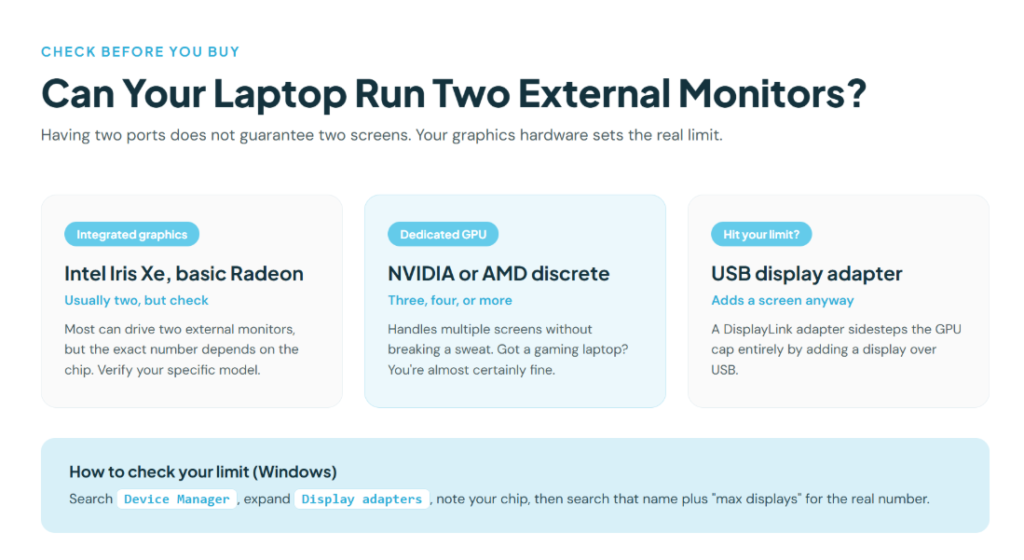
Here’s the thing nobody tells you in most setup guides: having two ports does not guarantee you can use two external screens at the same time.
Laptops with only integrated graphics (Intel Iris Xe, basic AMD Radeon) can usually drive two external monitors, but the exact number depends on the chip. Laptops with a dedicated GPU (NVIDIA or AMD discrete graphics) handle three, four, or more without breaking a sweat. If you have a gaming laptop, you’re almost certainly fine. Those machines are built to push pixels, and there’s a reason gaming laptops aren’t just powerful machines but genuinely versatile workstations.
To check your limit on Windows, search “Device Manager,” expand “Display adapters,” and note your graphics chip. A quick search of that chip name plus “max displays” gives you the real number. On a Mac, click the Apple menu, choose “About This Mac,” then “More Info,” and look up your model’s display support.
If your laptop maxes out at one external display through its built-in ports, don’t worry. A USB display adapter sidesteps that limit entirely. More on that below.
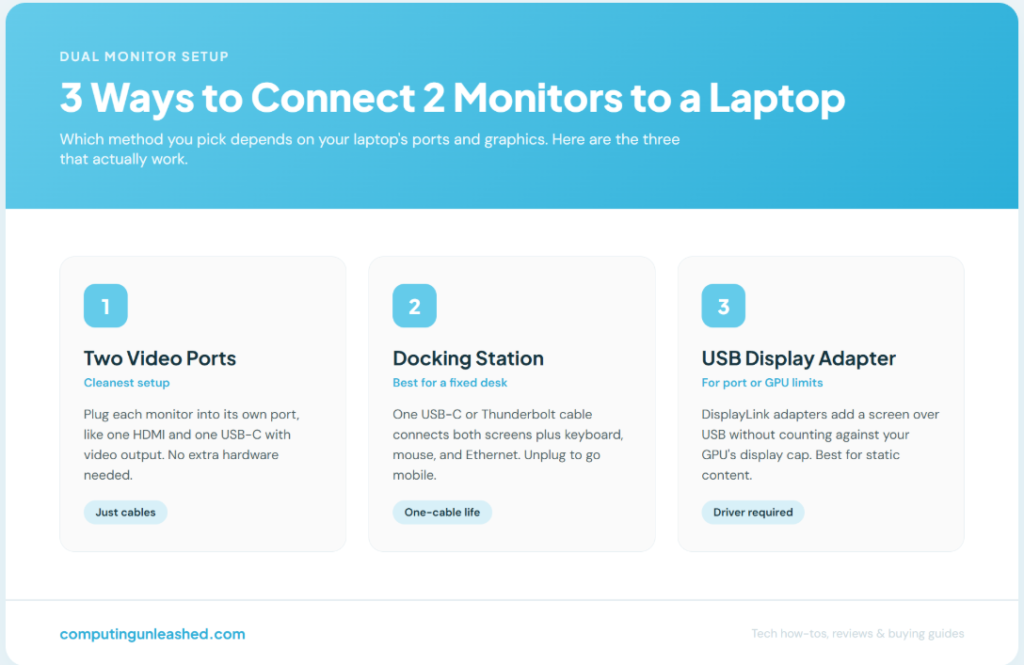
Method 1: Use Two Separate Video Ports
This is the cleanest setup and the one I reach for first. If your laptop has two usable video outputs, you don’t need any extra hardware beyond the cables.
A common combo is one HDMI port and one USB-C port that supports video output (often labeled with a “DP” or a display icon). Here’s how it goes:
- Connect the first monitor to your HDMI port with an HDMI cable.
- Connect the second monitor to your USB-C port. You’ll need a USB-C to HDMI or USB-C to DisplayPort cable, depending on the monitor’s input.
- Power on both monitors and select the correct input source on each (the menu button on the monitor itself).
- Windows or macOS should detect both. If not, jump to the troubleshooting section.
Not every USB-C port carries video. The ones that do support “DisplayPort Alternate Mode,” sometimes printed near the port. If your USB-C port is data-only, that monitor stays dark, and that confuses a lot of people. Check your laptop’s spec sheet if you’re unsure.
Method 2: Use a Docking Station
If your laptop has one video port (or you just want a tidier desk), a docking station is the better answer. You connect the dock to your laptop with a single cable, usually USB-C or Thunderbolt, and the dock provides multiple video outputs plus extra USB ports, Ethernet, and sometimes an SD card slot.
I use a dock in my own setup because I can plug in one cable and have two monitors, my keyboard, mouse, and a wired network connection all come alive at once. Unplug that one cable and the laptop goes mobile. It’s the difference between a thirty-second teardown and a five-minute one.
A few things to watch when buying a dock:
- Match the dock to your laptop’s port. A Thunderbolt dock needs a Thunderbolt port to hit its full potential. Plug a Thunderbolt dock into a plain USB-C port and it may run at reduced capability.
- Check the display outputs. Make sure the dock has the right combination of HDMI and DisplayPort for your two monitors.
- Confirm resolution support. Cheaper docks sometimes cap dual 4K at lower refresh rates. Read the spec line, not just the headline.
Docks cost more than a cable, but for a permanent desk setup the convenience earns its keep.
Method 3: Use a USB Display Adapter (DisplayLink)
This is the workaround for laptops that hit their graphics limit or only have one video port and no room for a dock. A USB display adapter plugs into a regular USB port and adds an extra screen using DisplayLink technology.
Here’s how it works under the hood. Rather than accessing the GPU directly, DisplayLink works through a software driver installed on the host computer that compresses the image data and streams it over the USB connection to the adapter hardware. The chip in the adapter then decodes that signal and sends standard HDMI or DisplayPort video to your monitor. The clever part is that it connects additional displays through a USB or USB-C port without counting against your computer’s total display limit.
The catch is performance. Because the work happens on your CPU rather than the GPU, DisplayLink adapters are designed for static or lightly animated content like documents, dashboards, and email rather than video editing or gaming. For a coding window, a browser, or a spreadsheet on your second screen, you won’t notice a thing. For watching 4K video or gaming on that screen, look elsewhere.
To set one up, install the DisplayLink driver first (download it from the manufacturer’s site), then plug in the adapter and connect your monitor. Windows and most Linux distributions are supported. On macOS you’ll need the DisplayLink Manager app installed manually.
You need one adapter per extra monitor. So for a two-monitor setup where your laptop already drives one screen natively, a single USB adapter adds the second.
Setting Up Extended Display on Windows
Cables connected? Good. Now you tell your laptop how to use those screens.
- Right-click anywhere on your desktop and choose “Display settings.”
- You’ll see numbered boxes representing each screen. Click “Identify” to see which number maps to which physical monitor.
- Scroll to “Multiple displays” and select Extend these displays. This turns your monitors into one continuous workspace instead of mirroring the same image.
- Drag the numbered boxes so their on-screen positions match how the monitors sit on your desk. Get this right and your mouse flows naturally from one screen to the next.
- Pick your main display (the one with your taskbar) by selecting it and ticking “Make this my main display.”
While you’re in there, set each monitor’s resolution and refresh rate to its native maximum. A monitor running below its native resolution looks soft, and people often blame the cable when it’s just a wrong setting.
Setting Up Extended Display on macOS
The Mac process is similar but lives in a different menu.
- Open the Apple menu, then “System Settings,” then “Displays.”
- Your connected screens appear as tiles. Make sure “Extended display” is selected rather than mirroring.
- Click and drag the display tiles to match your physical layout.
- Drag the white menu bar to whichever screen you want as your primary.
If you’re using a DisplayLink adapter on a Mac, the screen won’t appear until the DisplayLink Manager app is running, so launch that first.
Common Mistakes to Avoid
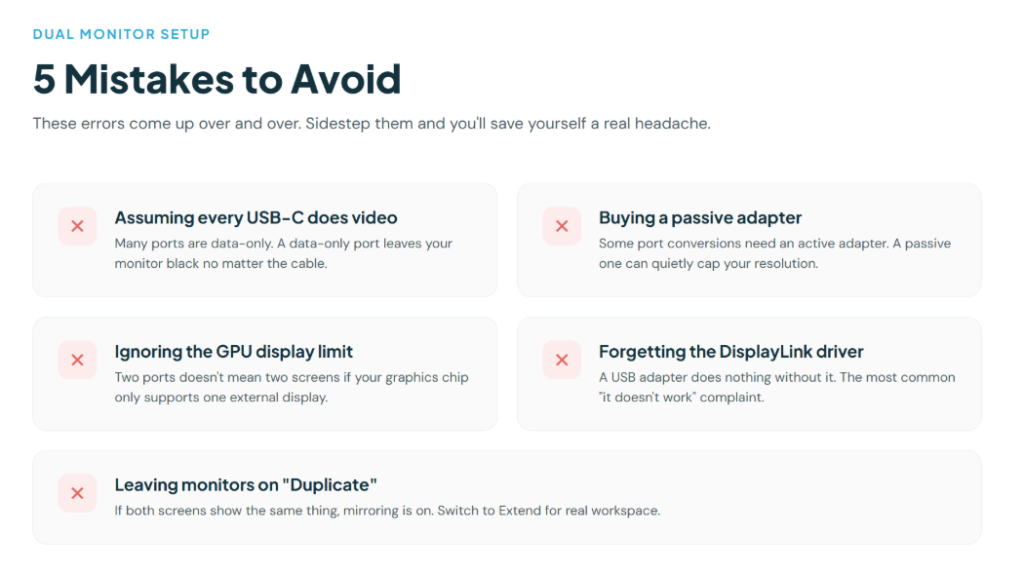
A few errors come up over and over. Sidestep these and you’ll save yourself a headache.
- Assuming every USB-C port does video. Many don’t. A data-only port leaves your monitor black no matter what cable you use.
- Buying a passive adapter when you need an active one. For certain port conversions (DisplayPort to HDMI at high resolution, for example), a passive adapter caps your resolution. Check whether you need active.
- Ignoring the GPU display limit. Two ports doesn’t mean two screens if your graphics chip only supports one external display.
- Forgetting to install the DisplayLink driver. The adapter does nothing without it. This is the most common “it doesn’t work” complaint with USB adapters.
- Leaving monitors on “Duplicate” instead of “Extend.” If both screens show the same thing, you’ve got mirroring on. Switch to extend.
Pro Tips for a Better Dual Monitor Setup
- Match your monitors if you can. Two screens of the same size and resolution sit at the same height and scale identically, which makes dragging windows across feel seamless.
- Mind the heat on thin laptops. Driving two external displays adds load, and on slim machines that means warmer running. If your laptop runs hot under this kind of work, it’s worth knowing how to keep a laptop cool so performance stays steady.
- Use a laptop stand. Lifting the laptop screen to the same height as your externals keeps your neck happy during long sessions.
- Cable management costs nothing. A few velcro ties behind the desk turn a mess into something you’ll actually want to look at.
- Set monitor scaling per screen. If one display is sharper than the other, adjust the scaling percentage individually in display settings so text stays readable on both.
Connecting Two Monitors With Only VGA or Older Ports
Got an older monitor with just a VGA or DVI input? You can still use it. Grab an active HDMI-to-VGA or DisplayPort-to-DVI adapter (active, not passive, for reliable signal). The image quality won’t match a digital connection, but for a secondary screen holding reference material it does the job.
One note: VGA is analog and tops out at lower resolutions, so don’t expect crisp 4K from it. For a second screen showing email or a chat window, it’s perfectly fine.
Conclusion and Key Takeaways
Connecting two monitors to a laptop comes down to one question: how many displays can your hardware drive, and through which ports? Answer that, and the rest is just picking the right cable, dock, or USB adapter.
If your laptop has two video outputs, use them directly. If it has one, a docking station gives you the cleanest permanent setup. And if you’ve hit your graphics limit, a DisplayLink USB adapter adds a screen the GPU can’t. Set everything to “Extend,” arrange the screens to match your desk, and you’ve turned one small laptop into a full workstation. The single thing to remember: check your GPU’s display limit before you buy anything.
Frequently Asked Questions
Can any laptop connect to two external monitors?
Most modern laptops can, but not all. Your graphics chip sets the limit on how many external displays it can drive at once. Laptops with dedicated GPUs handle multiple screens easily, while some with basic integrated graphics may only support one external monitor through their built-in ports. A USB display adapter can add a screen beyond that limit.
Do I need a docking station to connect two monitors?
No, a docking station is optional. If your laptop has two separate video ports, you can connect each monitor directly with a cable. A dock is most useful when your laptop has only one port or when you want a single-cable setup that connects everything at your desk at once.
Why is my second monitor not detected?
Common causes include a data-only USB-C port that doesn’t carry video, a missing DisplayLink driver for USB adapters, a loose cable, or the wrong input source selected on the monitor. Open display settings and click “Detect,” check the monitor’s input menu, and confirm your laptop’s GPU supports the number of displays you’re trying to use.
What’s the difference between extend and duplicate display?
Extend turns your monitors into one continuous workspace, so each screen shows different content and your mouse moves between them. Duplicate (mirroring) shows the exact same image on every screen, which is useful for presentations but not for getting more workspace. For a productivity setup, choose extend.
Can I connect two 4K monitors to a laptop?
Yes, if your hardware supports it. A laptop with a capable GPU and Thunderbolt or full-feature USB-C can drive two 4K screens. Check that your docking station or adapter supports dual 4K at your desired refresh rate, since some budget docks cap dual 4K at lower refresh rates.
Will a USB display adapter work for gaming on the second screen?
Not well. DisplayLink USB adapters compress video on your CPU and are built for static content like documents, dashboards, and email rather than gaming or video editing. They’re great for a productivity second screen, but for gaming use a native video port or a dedicated GPU output instead.