Last Updated on May 21, 2026 by CU Staff
You open your laptop and there they are: thin black lines slicing across the display, sometimes flickering, sometimes frozen in place. It is one of the more alarming faults a laptop can throw at you, mostly because it looks expensive. The good news is that black lines on a laptop screen do not always mean a dead machine. Sometimes it is a software hiccup you can clear in two minutes. Other times it points to a loose ribbon cable or a tired graphics chip. This guide walks through every common cause, how to tell them apart, and what you can actually do about each one.
Quick Answer: Black Lines on Laptop Screen
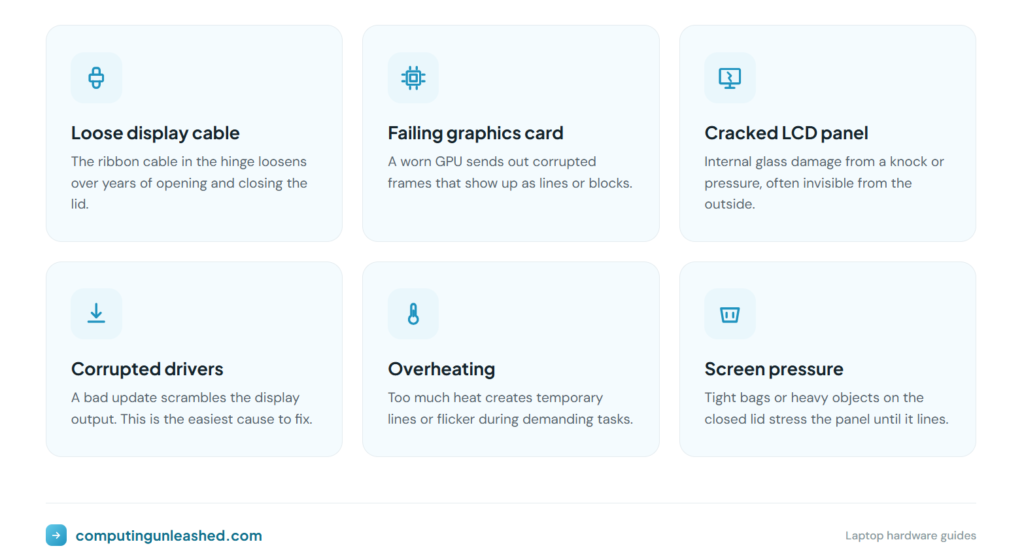
Black lines on a laptop screen are usually caused by a loose or damaged display cable, a failing graphics card, a cracked LCD panel, or corrupted graphics drivers. Software causes you can often fix at home in minutes. Hardware causes, like cable or panel damage, normally need a repair or a full screen replacement.
Software Problem or Hardware Problem?
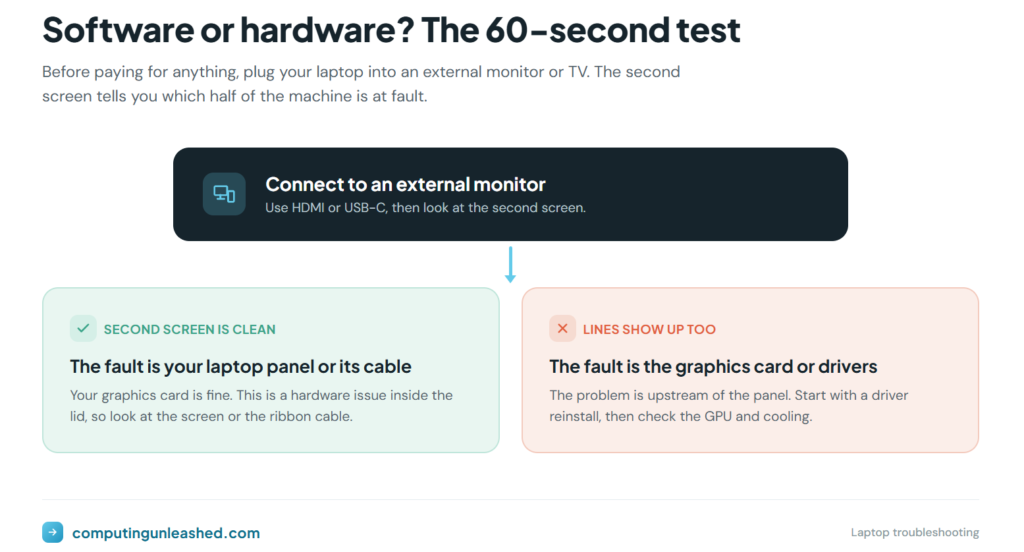
Before you panic, sort the fault into one of two buckets: software or hardware. This single step saves people from paying for repairs they never needed.
There is one test that settles it fast. Plug your laptop into an external monitor or a TV using HDMI or USB-C. Then look at the second screen.
- If the external display is clean with no lines, your laptop’s brain (the graphics card and the cable that drives the built-in panel) is probably fine. The fault sits in the laptop screen itself or the cable behind it.
- If the lines show up on the external display too, the problem is upstream. That points to the graphics card or its drivers, not the panel.
Run that test first. Everything below makes more sense once you know which half of the machine you are dealing with.
Common Causes of Black Lines on a Laptop Screen
Black lines rarely have one cause. They are a symptom, and several different faults produce the same look. Here are the ones I see most often, roughly in order of how common they are.
Loose or Damaged Display Cable
Inside the hinge of your laptop runs a flat ribbon cable that carries the picture from the motherboard to the screen. Every time you open and close the lid, that cable flexes. Over years of use it can loosen, fray, or pull slightly out of its connector.
When that happens, the signal reaching the panel gets scrambled, and you see lines, flicker, or color bands. A telltale sign: the lines change or disappear when you move the lid to a certain angle. If wiggling the screen makes the lines dance, the cable is your prime suspect.
Failing or Faulty Graphics Card (GPU)
The GPU renders everything you see. When it starts to fail, often after years of heat stress, it can spit out corrupted frames that show up as lines, blocks, or strange patterns across the whole display. This is the cause most likely to appear on an external monitor too, which is exactly why the external screen test is so useful.
Heavy, sustained load speeds this kind of wear up. If you push your machine hard, it is worth understanding how gaming and high temperatures can damage a laptop over time, because thermal stress is one of the biggest reasons a GPU degrades early.
Cracked or Damaged LCD Panel
The screen itself is a delicate stack of glass and liquid crystal. A knock, a drop, or even pressure from a heavy object resting on a closed lid can crack the internal layers without leaving a mark on the outer glass you can see.
Physical panel damage usually produces lines that never move, no matter what you do. They stay put through restarts, driver updates, and lid wiggling. You may also notice spreading patches of black, a “spider web” pattern, or pooling color near the lines. This one is almost always a hardware fix.
Outdated or Corrupted Graphics Drivers
Drivers are the translator between Windows and your graphics hardware. When they get corrupted by a bad update, a failed install, or a Windows patch that did not land cleanly, the display output can glitch into lines or flicker.
This is the best-case scenario, because it costs nothing to fix. A clean driver reinstall often clears it completely. I will cover the exact steps further down.
Overheating
Heat is the quiet enemy of every laptop component. When the GPU or display circuitry runs too hot, you can get temporary artifacts: lines, flicker, or visual garbage that appears during heavy use and fades once the machine cools.
If your lines only show up during gaming or video editing and vanish afterward, heat is a strong candidate. Sorting out your cooling habits goes a long way here, and we have a full guide on keeping a laptop cool during demanding sessions that covers airflow, surfaces, and accessories.
Screen Pressure or Physical Stress
This is the sneaky one. Carrying a laptop in a tight bag, stacking books on the lid, or pressing the screen with a thumb can stress the panel just enough to create faint lines. Sometimes they are temporary. Sometimes the pressure cracks an internal layer and they become permanent.
Vertical Lines vs Horizontal Lines: What the Direction Tells You
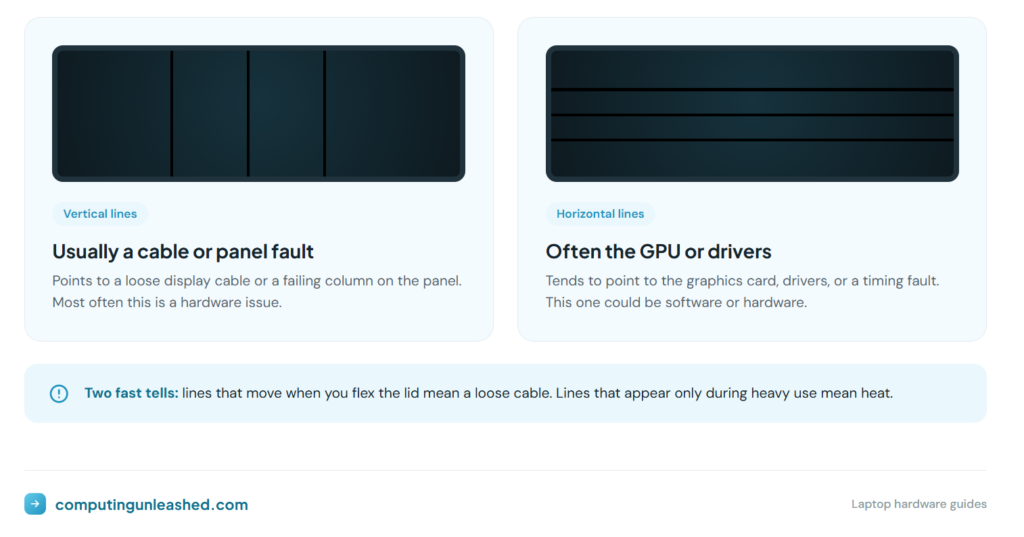
The direction of the lines is a useful clue, though it is not a guarantee. Here is a rough guide based on what each pattern usually points to.
| What you see | Most likely cause | Software or hardware |
|---|---|---|
| Single thin vertical line, fixed color | Stuck pixel column or panel fault | Hardware |
| Multiple vertical lines | Display cable or panel column driver | Usually hardware |
| Horizontal lines, flickering | GPU, drivers, or timing fault | Could be either |
| Lines that move when you flex the lid | Loose or damaged ribbon cable | Hardware |
| Lines only during heavy use | Overheating or GPU stress | Usually hardware |
| Lines after a Windows or driver update | Corrupted graphics drivers | Software |
Treat this as a starting point, not a diagnosis. The external monitor test still decides hardware versus software faster than guessing from line direction alone.
How to Fix Black Lines on Your Laptop Screen
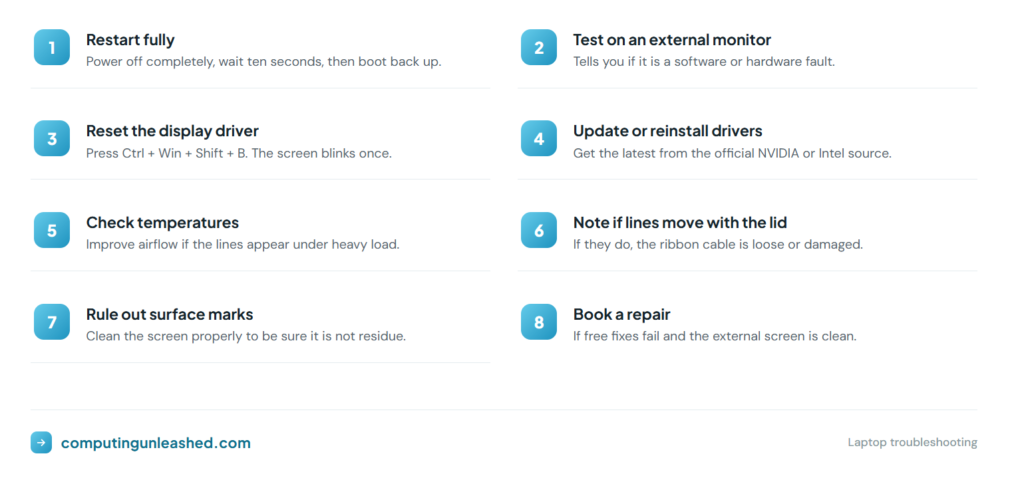
Work through these in order. Start with the free, low-risk steps before you touch anything physical. Most people never need to get past step four.
- Restart the laptop. Boring, but a full shutdown and restart clears temporary glitches more often than you would think. Power off completely, wait ten seconds, then boot back up.
- Run the external monitor test. Plug into a second screen as described earlier. This tells you whether you are chasing a software or hardware fault and stops you wasting time.
- Reset the graphics driver. On Windows, press Ctrl + Win + Shift + B. The screen will blink for a second as the display driver restarts. If lines clear instantly, you had a driver hiccup.
- Update or reinstall your graphics drivers. Go straight to the official source for your hardware. NVIDIA and Intel both publish current drivers, and a clean reinstall fixes a surprising number of display faults. Grab the latest from the official NVIDIA driver page or the Intel download center depending on your card.
- Check for overheating. If lines appear during heavy load, monitor your temperatures and improve airflow. Cooling fixes are cheap and worth ruling out before any repair.
- Gently flex the lid (carefully). If lines change as you move the screen angle, the ribbon cable is loose or damaged. Note this and stop. A cable swap is a job for a technician unless you are confident opening the chassis.
- Rule out the surface. Faint marks that look like lines can sometimes be dirt or residue, especially on touch panels. A proper clean rules this out. Our walkthrough on cleaning a laptop screen safely covers what to use and what to avoid.
- Book a repair. If the lines survive every step above and the external monitor is clean, you are almost certainly looking at a panel or cable replacement.
Can You Fix Black Lines Yourself, or Do You Need a Repair?
The honest answer depends on which cause you landed on.
Software faults, drivers, and overheating you can handle yourself at zero cost. That is where I always tell people to start, because it covers a real chunk of cases and costs nothing but ten minutes.
Hardware faults are a different story. A loose or damaged display cable can sometimes be reseated, but getting to it means opening the laptop, and one slip can make things worse. A cracked panel almost always needs a full screen replacement. Whether that is worth doing comes down to the age and value of the machine. If your laptop is already several years old, a screen replacement might cost enough that buying a newer model makes more sense. It helps to think about how long a laptop should realistically last before you sink money into a repair on an aging machine, since you do not want to spend half the price of a new laptop fixing an old one.
Common Mistakes to Avoid With Black Lines on a Laptop Screen
A few habits make a screen problem worse or send people down the wrong path. Steer clear of these.
- Pressing or tapping the lines to “fix” them. Pressure damages the panel further. It never helps.
- Skipping the external monitor test. People pay for screen replacements when the real fault was a driver. Always test first.
- Buying a repair part before diagnosing. Ordering a panel when the cable was loose wastes money. Confirm the cause first.
- Ignoring lines that only show up during gaming. That is a heat warning. Left alone, thermal stress shortens the life of the whole machine.
- Opening the laptop without the right tools or know-how. Stripped screws and torn cables turn a small problem into an expensive one.
Pro Tips for Preventing Black Lines
You cannot stop hardware from aging, but you can avoid the faults that bring black lines on early.
- Open and close the lid by the center, not a corner. Even, gentle pressure spares the hinge and the ribbon cable.
- Never stack anything heavy on a closed laptop. That pressure is a leading cause of cracked panels.
- Keep the machine cool during demanding work. Good airflow protects the GPU, which protects your display.
- Carry it in a padded sleeve, not loose in a tight bag where the lid gets squeezed.
- Keep your graphics drivers current, but install only from official sources to avoid bad packages.
Key Takeaways
Black lines on a laptop screen look scary but often have a simple explanation. The single most useful move is the external monitor test, because it instantly tells you whether the fault is software you can fix yourself or hardware that needs a repair. Start with restarts and drivers, rule out heat, and only reach for a repair once the free fixes come up empty. If the lines stay frozen through everything and the external screen is clean, your panel or cable is the culprit.
Frequently Asked Questions
Why does my laptop screen suddenly have black lines?
Sudden black lines usually point to a loose display cable, a graphics driver glitch, or early panel damage. If they appeared right after a software update, drivers are the likely cause. If they showed up after a knock or pressure on the lid, suspect the panel.
Can black lines on a laptop screen be fixed?
Yes, in many cases. Lines caused by drivers, software, or overheating are often fixable at home for free. Lines from a cracked panel or a damaged cable need a hardware repair, which usually means reseating the cable or replacing the screen.
How do I know if it is my screen or my graphics card?
Plug your laptop into an external monitor. If the lines appear on the second screen too, the fault is your graphics card or drivers. If the external screen is clean, the problem is your laptop’s own panel or the cable behind it.
Will black lines on my laptop screen get worse?
They can. Lines from a cracked panel or a failing graphics card often spread over time. Lines from drivers or temporary overheating usually do not get worse once you address the cause, though ongoing heat will keep stressing the hardware.
Does overheating cause black lines on a laptop screen?
It can. When the graphics chip or display circuitry runs too hot, it may produce temporary lines or flicker that fade once the machine cools. If your lines only appear during gaming or heavy editing, heat is a strong suspect, and better cooling often clears them.
How much does it cost to fix black lines on a laptop screen?
It depends on the cause. A driver fix is free. A cable reseat is cheap if you can do it yourself. A full screen replacement is the priciest option and varies by model. On an older laptop, the replacement cost can approach the price of a newer machine, so weigh it carefully.
Can I still use my laptop with black lines on the screen?
Often yes, especially if the lines are faint or limited to one area. Connecting an external monitor lets you keep working with a clean display while you decide on a repair. But if the lines are spreading, that signals worsening damage you should address sooner rather than later.