
Last Updated on May 21, 2026 by CU Staff
Your Asus laptop is acting up. Maybe an app froze, the Wi-Fi dropped for no reason, or the whole screen just locked solid and the cursor stopped moving. Nine times out of ten, a restart fixes it before you have to try anything fancier. The tricky part is knowing which kind of restart to use, because a normal reboot and a force restart are not the same thing, and using the wrong one at the wrong time can cost you unsaved work. This guide walks through every way to restart an Asus laptop, from the easy click-the-menu method to the last-resort hard reset, so you always know which button to press.
Quick Answer — How to Restart an Asus Laptop
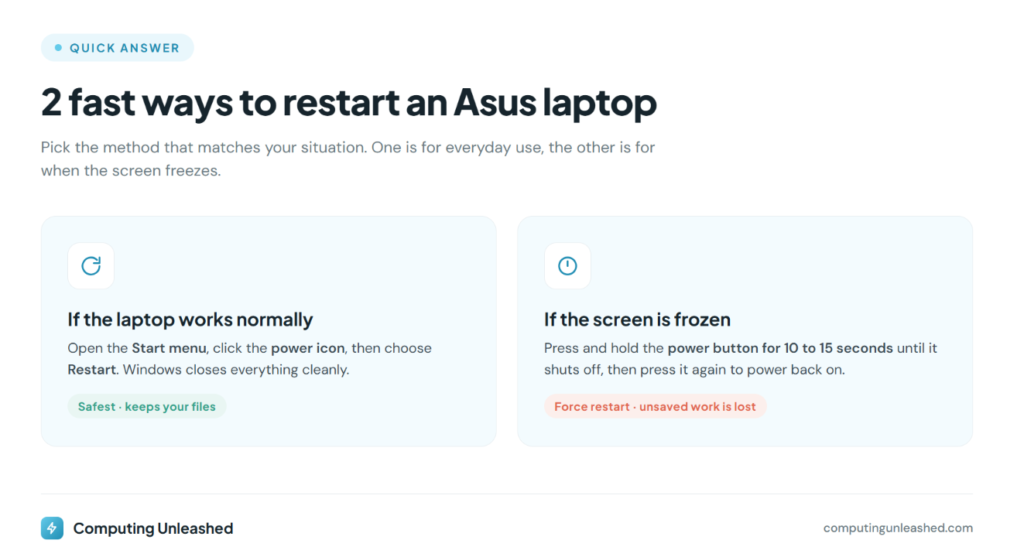
To restart an Asus laptop, click the Start menu, select the power icon, then choose Restart. If the screen is frozen, press and hold the power button for 10 to 15 seconds until it shuts off, then press it again to turn it back on.
Restart vs Shutdown vs Reset: Know the Difference
Before you touch anything, it helps to know what these words actually mean, because people use them interchangeably and they really should not.
A restart (also called a reboot) shuts the laptop all the way down and boots it straight back up in one motion. It clears the system memory, closes every running app, and gives Windows a clean start. Your files, photos, and installed programs stay exactly where they were.
A shutdown just turns the laptop off and leaves it off until you press the power button again. On modern Windows machines, a normal shutdown isn’t even a full power-off thanks to a feature called Fast Startup, which saves part of the system state to disk. That is why a restart sometimes fixes a problem that a shutdown does not: a restart ignores Fast Startup and reloads everything fresh. If you have ever wondered why a laptop quietly drains a bit of battery even when it looks switched off, the way these power states work is a big part of the reason. We covered that oddity in more detail in our guide on whether laptops lose charge when turned off.
A reset is the big one, and it is completely different. A factory reset wipes the laptop back to how it shipped, which can mean losing your files. Restarting and resetting are not the same thing, so do not reach for a reset when all you needed was a reboot.
How to Restart an Asus Laptop From the Start Menu
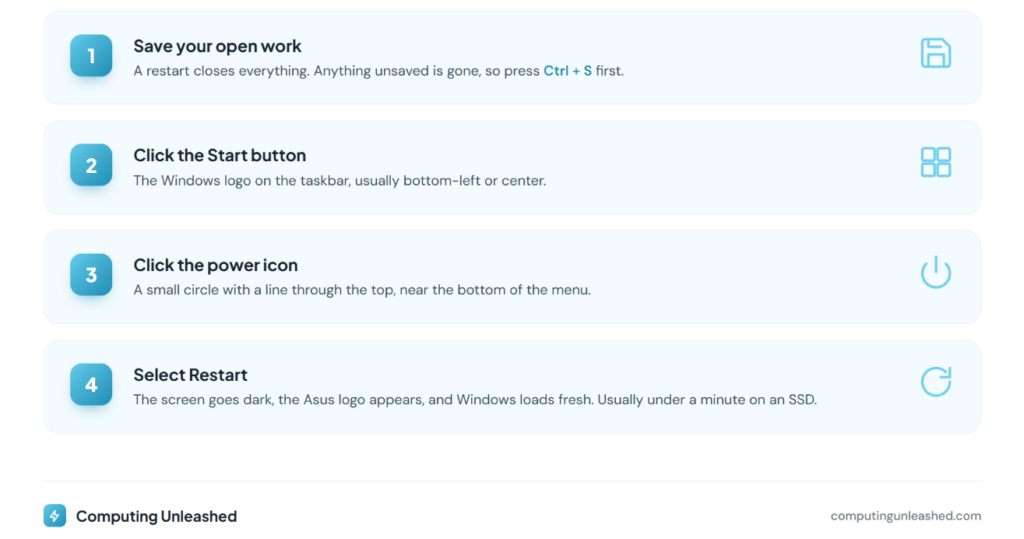
This is the way you should restart 95% of the time. It is clean, it is safe, and it lets Windows close everything properly. The steps are identical on Windows 11 and Windows 10, with only tiny visual differences.
- Save any open work first. A restart closes everything, and anything unsaved is gone.
- Click the Start button (the Windows logo) in the taskbar.
- Click the power icon (it looks like a small circle with a line through the top).
- Select Restart from the little menu that pops up.
The screen will go dark, the Asus logo will appear for a few seconds, and Windows will load back up. That is it. On most Asus laptops the whole thing takes under a minute if you are running an SSD.
I do this once or twice a week even when nothing is wrong. It clears out memory that background apps slowly hog over time, and the machine almost always feels snappier afterward. If you find a fresh reboot stops feeling like enough, that creeping slowness might be a memory issue rather than a software glitch, and it is worth reading whether adding more RAM would speed your computer up.
Restart an Asus Laptop With Keyboard Shortcuts
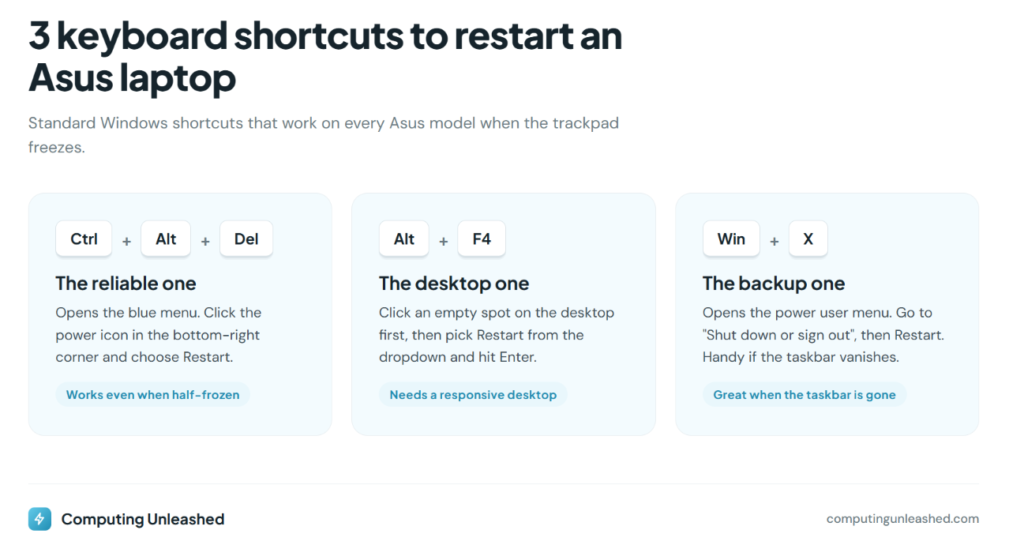
Sometimes the mouse stops responding but the keyboard still works. Or you just prefer keys over clicking around. Asus laptops run standard Windows shortcuts, so all of these work.
Ctrl + Alt + Del
Press these three keys together. A blue menu appears with a power icon in the bottom-right corner. Click it, choose Restart, and you are done. This screen often loads even when the desktop itself looks half-frozen, which makes it a reliable first move when things go sideways.
Alt + F4
Click an empty spot on the desktop first so nothing else is selected, then press Alt + F4. A small shutdown box pops up. Use the dropdown to pick Restart and hit Enter. This one only works when the desktop is responsive, so it is more of an everyday shortcut than an emergency fix.
Windows key + X
Tap the Windows key + X to open the power user menu, move to Shut down or sign out, then select Restart. Handy if the taskbar itself has gone missing.
How to Force Restart a Frozen Asus Laptop
Here is the scenario everyone dreads. The screen is stuck, the cursor will not move, Ctrl + Alt + Del does nothing, and the laptop is basically a brick. This is when you force a restart using the power button.
- Find the power button. On most Asus laptops it sits at the top-right of the keyboard, sometimes doubling as a key. On a few models it is on the side edge.
- Press and hold it down for about 10 to 15 seconds. Do not tap it, hold it.
- The laptop will cut power and shut off completely. All the lights and the fan will go quiet.
- Wait around 10 seconds, then press the power button once to turn it back on.
A forced restart yanks the power without asking Windows nicely, which is exactly why you only use it when nothing else responds. The one real downside is unsaved work: anything you had not saved is lost. That trade-off is almost always worth it when the machine is otherwise unusable.
People sometimes worry that doing this regularly will damage the laptop. It will not. A force restart is a normal recovery tool, not a sledgehammer, and the occasional one has no meaningful effect on how long your machine survives. If laptop wear and lifespan is something you think about, our breakdown of how long a laptop should realistically last puts it in perspective.
How to Restart an Asus Laptop With a Black Screen
A black screen is its own special kind of frustrating, because you cannot tell whether the laptop is on, asleep, or genuinely dead. Work through these in order.
- Check it is actually on. Look for a power LED or listen for the fan. Tap a key or the trackpad to wake it from sleep before assuming the worst.
- Force a shutdown. Hold the power button for 10 to 15 seconds, wait, then power back on. This clears most software-related black screens.
- Try the display wake shortcut. Press Windows key + Ctrl + Shift + B. This restarts the graphics driver and can bring a blank screen back to life without a full reboot.
- Boot into the BIOS. Power on and tap F2 repeatedly. If the BIOS screen shows up, the hardware is fine and the problem is on the software side.
- Reach the recovery menu. Tap F9 during startup to open Asus recovery options, where you can launch Safe Mode or repair tools.
If none of that brings the screen back, the issue may be deeper than a normal restart can solve, and a hard reset is the next step.
Hard Reset (EC Reset): When a Force Restart Isn’t Enough
A hard reset, which Asus officially calls an EC reset, goes a level below an ordinary force restart. The EC, or embedded controller, is a chip on the motherboard that manages power, the keyboard, the trackpad, and startup. Resetting it clears stuck low-level states that a regular reboot cannot touch. Asus recommends it for battery, keyboard, touchpad, or boot problems that survive a normal restart.
Here is the procedure, based on Asus’s own guidance:
- Hold the power button for 15 seconds to fully shut the laptop down. Wait for every light to go off.
- Unplug the charger and disconnect everything: USB drives, mouse, external monitor, dock, all of it.
- If your model has a removable battery, take it out. Most newer Asus laptops have a sealed battery, so skip this step if yours does.
- Press and hold the power button again for 40 seconds. (Some models use a 20-second design, so if 40 feels off, 20 may be correct for yours.) This drains residual power and resets the controller.
- Reconnect only the charger, then press the power button once to start up.
This will not erase your files or settings. It just resets the hardware to a clean state, which is why it is safe to try when a frozen or non-booting laptop refuses to behave. For the exact, model-specific steps, the Asus official support page on EC and RTC resets is the source worth bookmarking. Asus also has a dedicated troubleshooting guide for boot failures and black screens if the laptop still will not start.
Which Restart Method Should You Use?
Quick reference so you can match the situation to the right method:
| Method | Best for | Time | Risk to unsaved work |
|---|---|---|---|
| Start menu restart | Everyday reboots, fixing minor glitches | Under 1 min | None (it warns you) |
| Keyboard shortcut | Mouse not responding, faster access | Under 1 min | None to low |
| Force restart (power button) | Fully frozen, unresponsive screen | 30 sec to 1 min | High (work is lost) |
| Hard reset / EC reset | Won’t boot, dead trackpad, power issues | 2 to 3 min | None to files |
The rule of thumb: start with the gentlest method that fits, and only move down the list when the one above it fails.
Common Mistakes to Avoid When Restarting an Asus Laptop
- Force restarting too soon. A laptop installing updates can look frozen when it is just slow. Wait a few minutes before pulling the power, especially if you see a spinning dots animation.
- Confusing restart with reset. Hitting “Reset this PC” when you only wanted a reboot can wipe your data. Read the screen before you click.
- Holding the power button for one second and expecting a restart. A quick tap usually triggers sleep, not a shutdown. For a force restart you have to hold it for the full 10 to 15 seconds.
- Skipping the save step. Any unsaved document is gone the moment a restart begins. Hit Ctrl + S before you reboot.
- Repeating force restarts in a loop. If it keeps freezing right after every restart, that is a sign of a deeper problem. Move to a hard reset or Safe Mode instead of cycling the power over and over.
Pro Tips for a Smooth Restart
- Reboot weekly, not just when something breaks. A regular restart clears cached junk and keeps the machine responsive. It is one of the simplest free fixes for a sluggish laptop, and we list plenty more in our guide to speeding up a slow computer without spending a cent.
- Restart after big updates. Windows and driver updates often need a reboot to fully apply. Do not put it off for days.
- Use Restart, not Shut Down, to fix problems. Because of Fast Startup, a restart gives you a truly clean boot while a shutdown may not. When you are troubleshooting, always pick Restart.
- Learn the F2 and F9 keys. Knowing F2 opens the BIOS and F9 opens Asus recovery turns a scary black screen into a solvable one.
Key Takeaways
Restarting an Asus laptop is rarely complicated. For everyday use, the Start menu restart is all you need, and it keeps your files safe. When the screen freezes, hold the power button for 10 to 15 seconds to force a shutdown, then power back on. Save the hard reset for the stubborn cases where the laptop will not boot or the hardware acts up. The one thing to remember: always save your work first, because a restart waits for nobody.
Frequently Asked Questions
How do I restart my Asus laptop when it is frozen?
Press and hold the power button for 10 to 15 seconds until the laptop shuts off completely. Wait about 10 seconds, then press the power button once to turn it back on. This is a force restart, and it works even when the screen is completely unresponsive.
What is the keyboard shortcut to restart an Asus laptop?
Press Ctrl + Alt + Del, then click the power icon in the bottom-right corner and choose Restart. You can also click an empty area of the desktop and press Alt + F4, then select Restart from the dropdown. Both use standard Windows shortcuts that work on Asus models.
Does restarting an Asus laptop delete my files?
No. A restart simply shuts the laptop down and boots it back up, leaving all your files, photos, and installed programs untouched. Only a factory reset erases data, and that is a completely different process you have to choose on purpose.
Why does my Asus laptop need a restart so often?
Frequent restarts usually point to too many background apps, a memory bottleneck, or a software conflict that builds up over time. An occasional restart is normal and healthy. If you find yourself rebooting several times a day, look into closing startup programs or adding more RAM.
How long should I hold the power button to force restart an Asus laptop?
Hold it for 10 to 15 seconds for a standard force shutdown. For a deeper hard reset, Asus recommends holding the power button for about 40 seconds after disconnecting the charger and accessories, though some models use a 20-second design.
What is the difference between restart and reset on an Asus laptop?
A restart reboots the laptop while keeping all your files and settings intact. A reset, specifically a factory reset, restores the laptop to its original state and can erase your data. Use restart for everyday fixes and only reset when you want to wipe the machine.
My Asus laptop has a black screen. How do I restart it?
First, hold the power button for 10 to 15 seconds to force a shutdown, then turn it back on. If the screen stays black, try Windows key + Ctrl + Shift + B to restart the graphics driver, or tap F2 on startup to reach the BIOS and confirm the hardware is working.